AI STUDIO · Edit video
AI video editor:
say what to change.
Give it a clip and describe the change, and the rest stays the clip you shot. Or use a clip as a reference, and get a new shot with its motion, framing and timing.
Start creatingOpens Edit video in Postally. Generation uses credits, shown before you run.
KEY FEATURES
Edits in words, not timelines.
Two ways in: change the clip you have, or make a new one that moves like it.
Modify video.
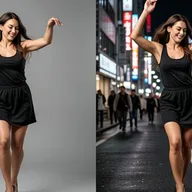
Change the time of day, the weather, an outfit or an object in a clip, by describing it.
Reference video.
A new shot built from a clip: its motion, framing and timing carry over.
Add pictures.
In Reference mode, add up to four pictures to show what the new shot should contain.
Up to 4K.
Gemini Omni Flash 1.1 edits from 360p up to 4K; Seedance 2.5 edits at 480p or 720p.
Price before you run.
The credits are on the button before you start, so nothing is spent by surprise.
Lands in your library.
Every result saves to the brand’s Media library, ready to attach to a post, send for approval and schedule.
HOW IT WORKS
Edit a clip in three steps.
- Step 1
Add the clip
MP4 or MOV, 1 to 10 seconds, up to 100 MB. Choose Modify or Reference.
- Step 2
Describe the change
Say what should be different. In Reference mode, describe the new shot.
- Step 3
Generate
Pick the model and output, then run. The edited clip saves to your library.
WHAT YOU CAN MAKE
Changes worth asking for.
Each prompt opens Edit video with it written. Add your clip and run.
Change the time of day
Turn a daytime shot into dusk or night.
Try this promptRead the prompt
Change the scene to golden hour at sunset, warm low sun, long shadows, keep everything else the same.
Change the weather
Add rain, snow or fog to a shot you already have.
Try this promptRead the prompt
Add gentle snowfall to the scene, light snow settling on surfaces, keep the people and camera motion unchanged.
Swap a product
Put a different item in the hand or on the table.
Try this promptRead the prompt
Replace the cup in her hand with a tall green glass bottle, keep her hand, movement and lighting the same.
Same move, new scene
Use Reference mode to keep a clip’s camera move in a new place.
Try this promptRead the prompt
A new shot of a mountain cabin interior with the same camera motion, framing and timing as the reference clip.
MODELS
Two editing engines.
Edit video offers these by default.
- Google
Gemini Omni Flash 1.1
360p to 4K. Reference mode takes up to 6 pictures and 3 short clips.
- ByteDance
Seedance 2.5
480p or 720p, up to 4 pictures.
QUESTIONS
Before you start.
Modify changes the clip you give it and keeps the rest. Reference makes a new shot that copies the clip’s motion, framing and timing.
For Modify, 1 to 10 seconds, MP4 or MOV, up to 100 MB, between 720 and 2160 pixels. A reference clip is billed on its length as well as the output.
Use Replace character for that. It swaps a person’s whole body or only their face.
Runs use AI credits, priced by model and length. The tool shows the credits on its button before you run, so you see the price first. See the pricing page for the current plans.
Into your brand's Media library, like everything made in AI Studio. From there you can attach it to a post, send it for approval and schedule it.
Yes. The link opens the tool inside Postally, so you sign in first. Postally is in early access through the waitlist.

Edit video
Fix it in a sentence.
Open Edit video, add the clip and describe the change. The price is on the button before you run.
Start creating